Editor
Tabs, large-file editing, Markdown preview, find/replace, diffs, and recovery.
Tabs and files
- Open files from the Explorer, File menu, or by dropping paths into the agent context (where supported).
- Each open file is a tab. Preferences and some custom screens also appear as non-file tabs.
- Unsaved changes are marked dirty; save from the File menu or your usual save shortcut.
Saves on desktop use safe writing: backups (.bak) and optional trash archives so you can recover overwritten or deleted files. Configure retention under Preferences → Files / File recovery.
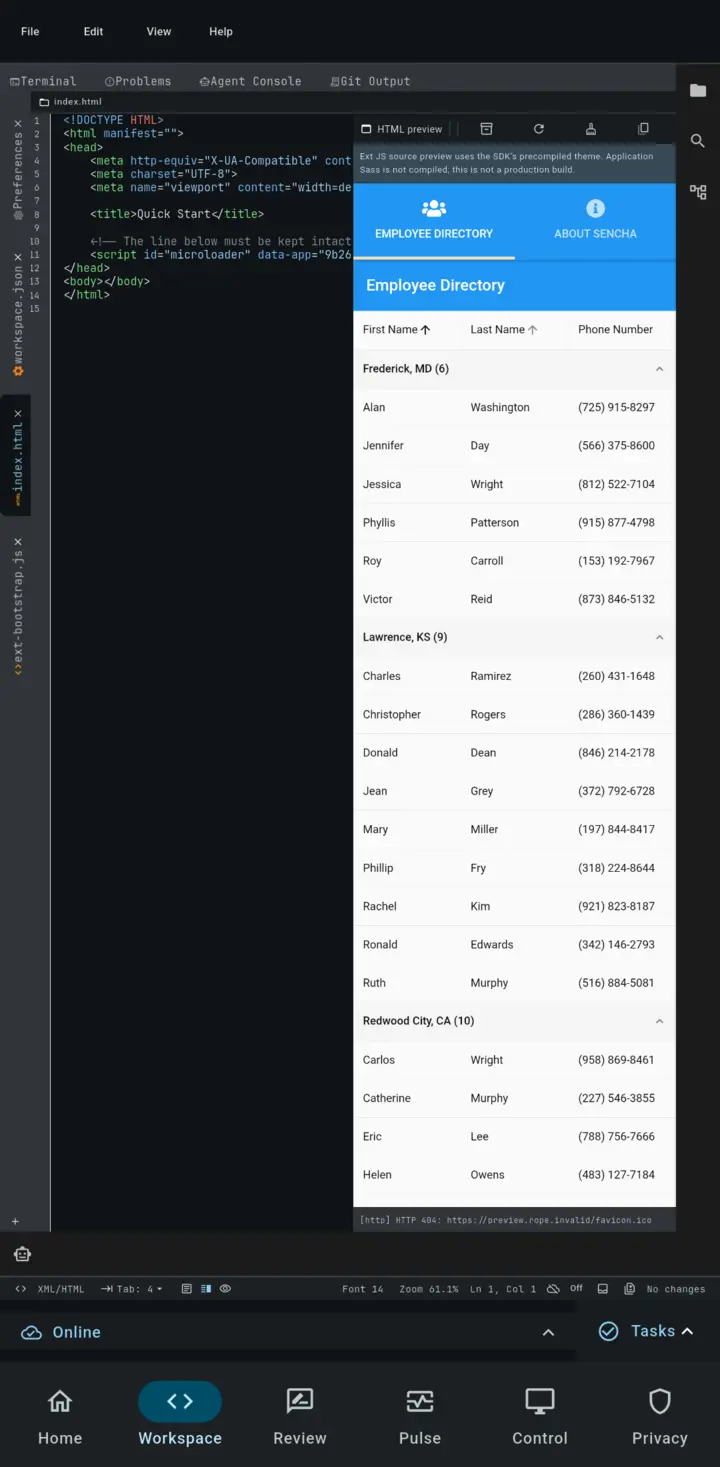
Preview web source
On Android and macOS, supported web source can open beside an in-app preview. Rope Pages can preview HTML, TypeScript, TSX, and JSX. Ext JS projects can also open an application preview next to the source, as shown above.
The Ext JS preview uses the SDK's precompiled theme. Rope Notes does not compile application Sass in this preview, so treat it as a fast development view rather than a production build. Network access remains subject to the workspace's web policy.
Editing large files
Rope Notes uses a rope-backed editor designed for large documents. Very large files may load in stages so the UI stays responsive.
Syntax highlighting
Languages include Bash, C/C++, CSS, Dart, Diff, Go, Java, JavaScript, JSON, Kotlin, Markdown, PHP, Python, Ruby, Rust, SQL, Swift, TypeScript, XML/HTML, YAML, and more. Detection uses the filename and, if needed, file contents. You can override language when the UI exposes a language control for the tab.
Markdown
For Markdown files you can switch among:
- Editor only
- Side by side (source + live preview)
- Preview only
The preview scrolls in sync with the source. Fenced code blocks are highlighted; Mermaid diagrams and common SVG badges are supported in the preview.
Find and replace
| Action | Shortcut (Ctrl on Linux, Cmd on macOS) |
|---|---|
| Find | Ctrl/Cmd+F |
| Replace | Ctrl/Cmd+H |
The find bar can seed from the current selection. State resets when you switch documents.
Diffs
.diff/.patchfiles (or content that looks like a unified diff) highlight added and removed lines.- Diff against disk compares the buffer to the saved file and lets you review or revert blocks. Use this when the file changed externally or you want to undo hunks back to disk. Very large files may skip a full diff for performance.
Minimap, gutter, and zoom
| Action | Shortcut |
|---|---|
| Toggle minimap | Ctrl/Cmd+M |
| Toggle line gutter | Ctrl/Cmd+G |
| Zoom in | Ctrl/Cmd+= or Ctrl/Cmd++ |
| Zoom out | Ctrl/Cmd+- |
| Reset zoom | Ctrl/Cmd+0 |
UI scale and theme seed color are under Preferences → View.
Agent edits in the editor
When the AI agent proposes a change, you may see:
- A ghost preview of the proposed text
- An accept / reject toolbar
- A diff view of the proposal (including multi-file proposals)
Nothing is written until you accept. See AI agent.
Diagnostics
Dart analysis errors and warnings appear as underlines / gutter marks and in the Problems panel. See Language server.